
ASKCOS MCP Assistant (2026.04)
The MCP Assistant is an AI-powered chat interface embedded in the ASKCOS platform. It currently uses a Claude-based large language model (LLM) to interpret prompts and assist users, with plans to add support for additional LLM APIs in the future. The assistant connects directly to the ASKCOS MCP server, allowing users to interact with computational chemistry tools in real time using natural language prompts.
1. Opening the MCP Assistant
The MCP Assistant is available in the left navigation sidebar on every page of ASKCOS, but will only appear when it is enabled via the relevant environment variable (VITE_ENABLE_CHATBOT).
Steps to open:
- Look at the left sidebar and locate the robot icon, labelled "MCP Assistant" when hovered.
- Click the robot icon to launch the chat panel.
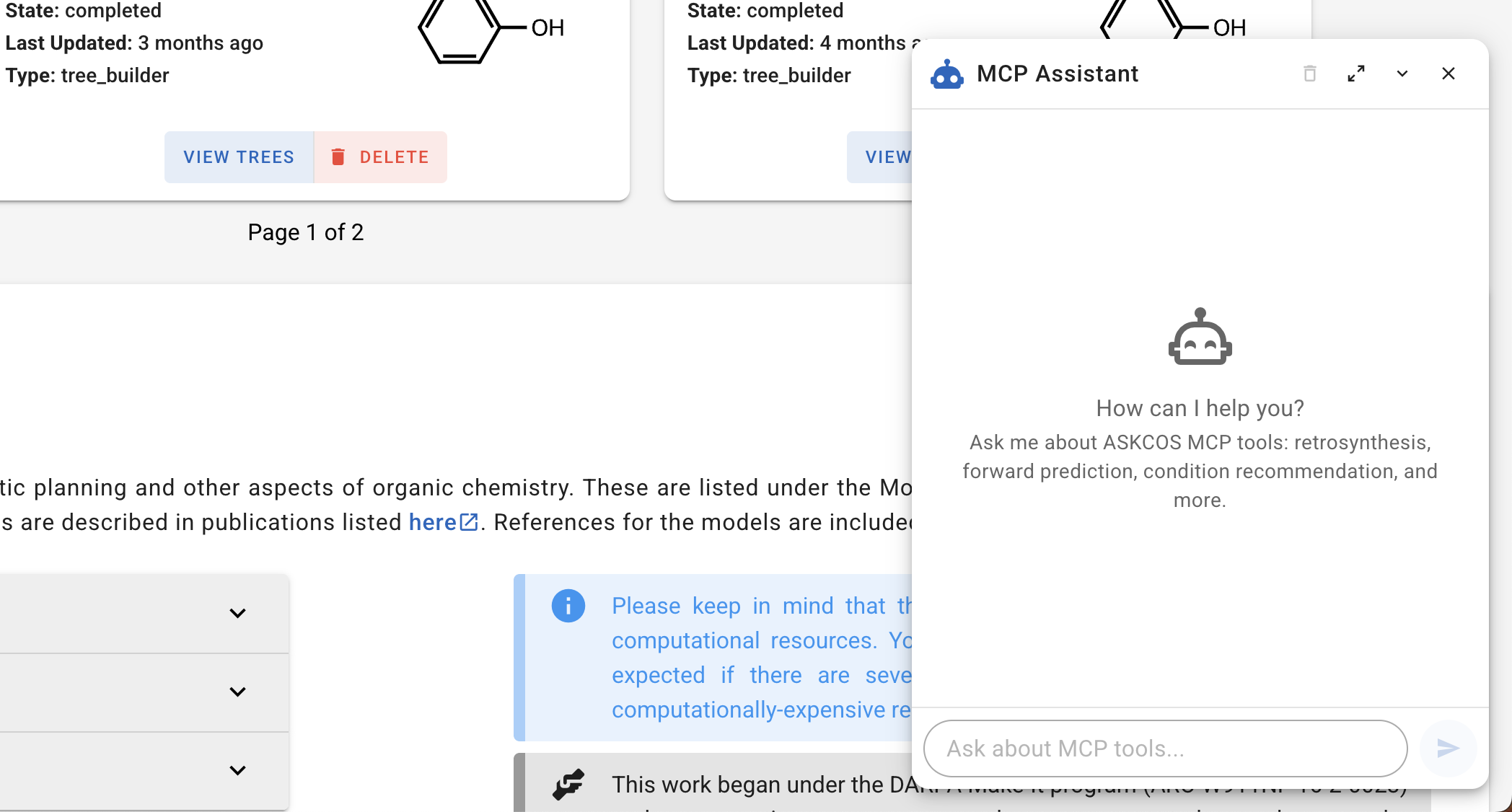
- The MCP Assistant panel will appear as a floating card anchored to the bottom-right of the browser window.
2. Sizing and Resizing the Panel
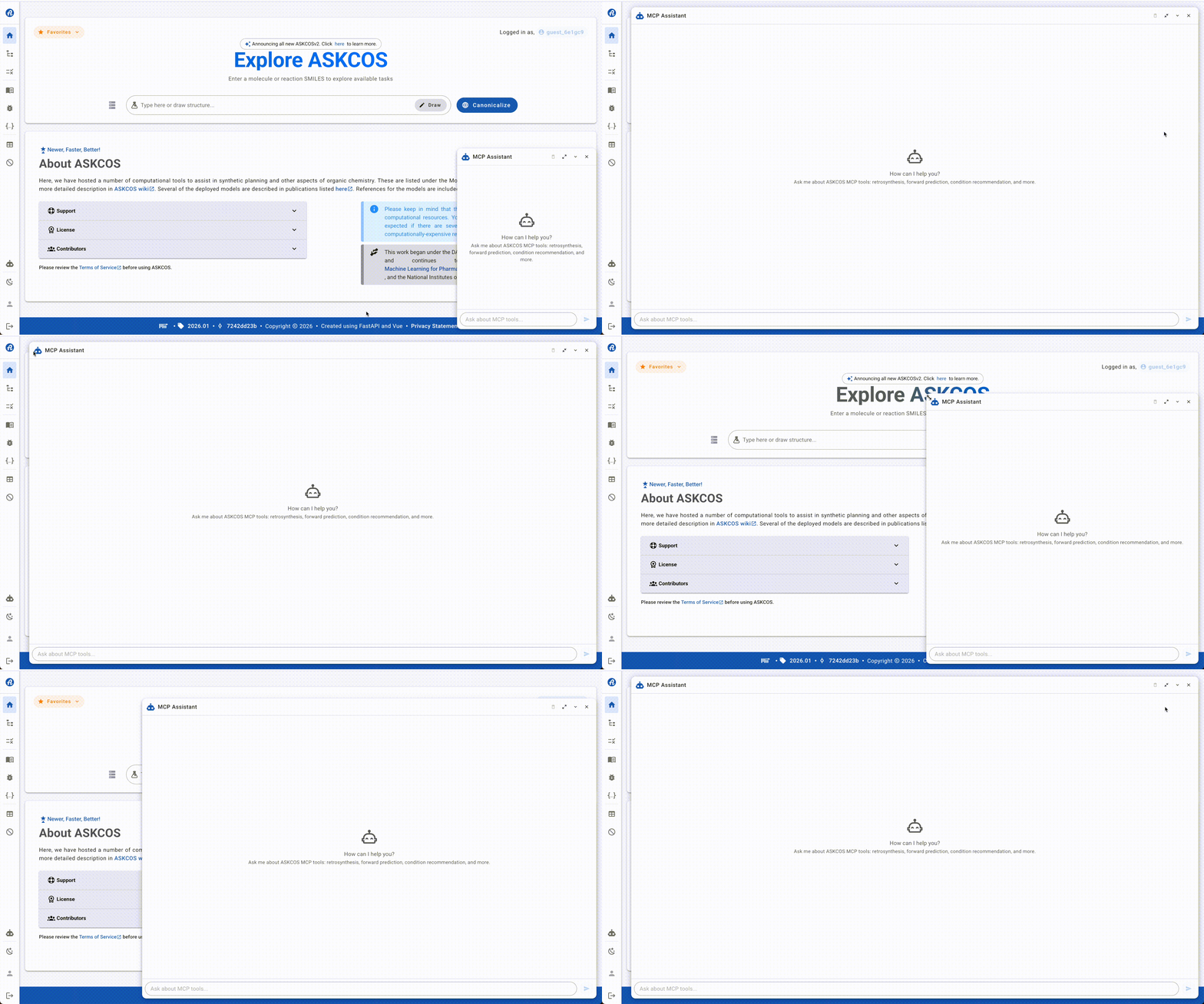
The MCP Assistant panel supports three sizing modes, controlled by buttons in the panel header, and can also be resized manually by dragging its edges.
The panel header has buttons to clear the conversation (trash), expand or collapse to fullscreen (arrows), minimize to a small bar (chevron down), and close (X). By default, the panel appears as a compact card in the bottom-right corner, but you can expand or minimize it as needed.
You can also resize the panel by dragging its left edge, top edge, or top-left corner. Just move your mouse over these areas until the resize cursor appears, then click and drag.
How to resize: Hover over the edge or corner until the resize cursor appears, then click and drag.
3. Using the Chat Interface
Type your prompt in the "Ask about MCP tools..." text field at the bottom of the panel and press Enter or click the ➤ send button. The assistant processes requests sequentially, displaying intermediate status messages (e.g., "Task submitted! Now polling for the results...") before delivering the final answer.
4. Example Workflows
4.1 Prompt 1 — One-Step Retrosynthesis + Condition Prediction
Prompt entered:
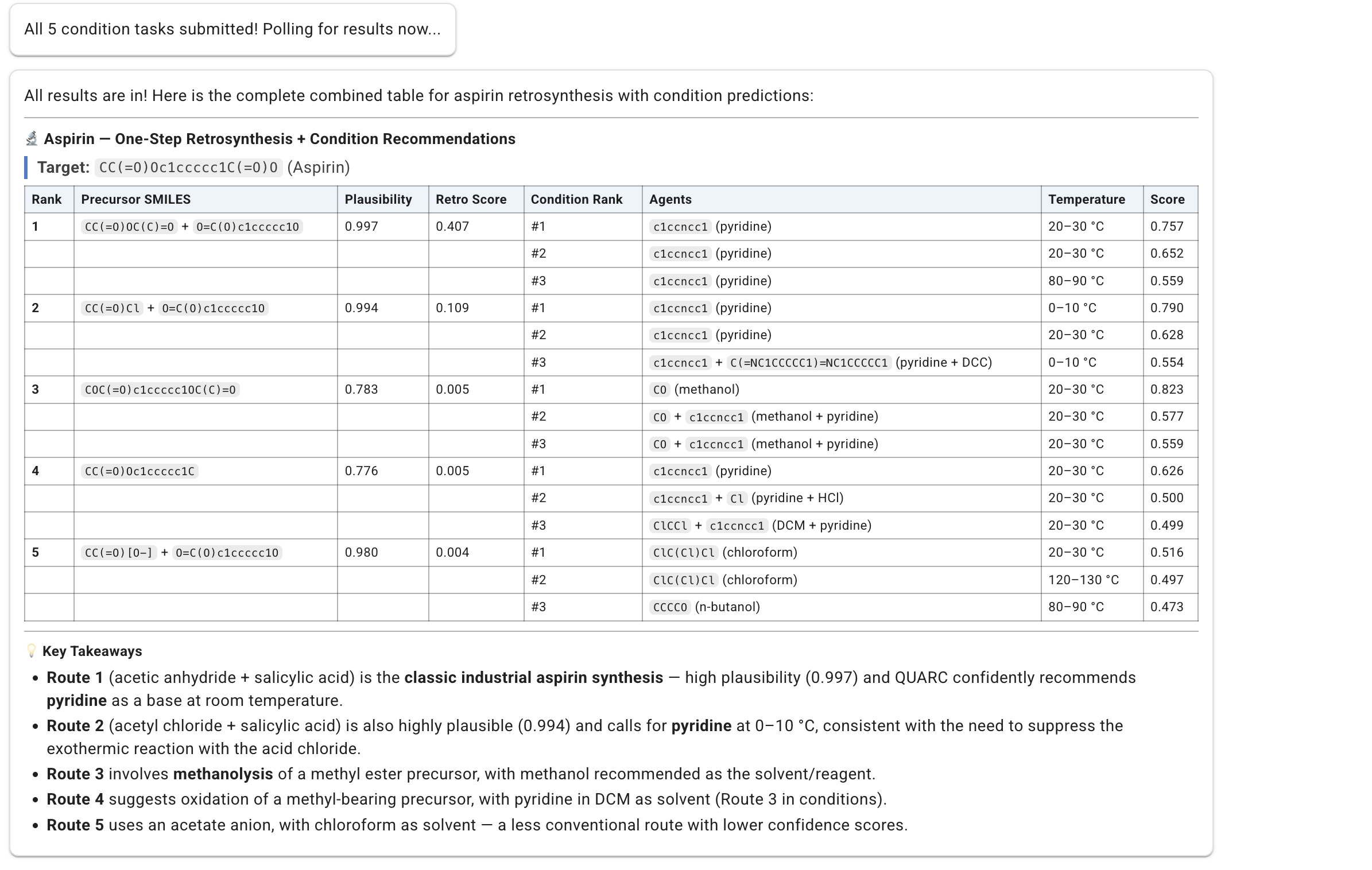
Run a one step expansion with aspirin, arrange the top 5 results in a table, with the precursor SMILES (no chemical name please). Thereafter, run the condition predictors and add the top 3 predicted conditions to the table.
What the assistant did:
- Identified aspirin's SMILES:
CC(=O)Oc1ccccc1C(=O)O - Submitted a one-step retrosynthetic expansion task and polled for results.
- Retrieved the top 5 retrosynthetic disconnections.
- Ran condition predictor for all 5 results and obtained the top 3 predicted conditions for each.
Sample result:
4.2 Prompt 2 — Forward Outcome Prediction
Prompt entered (continuing the example):
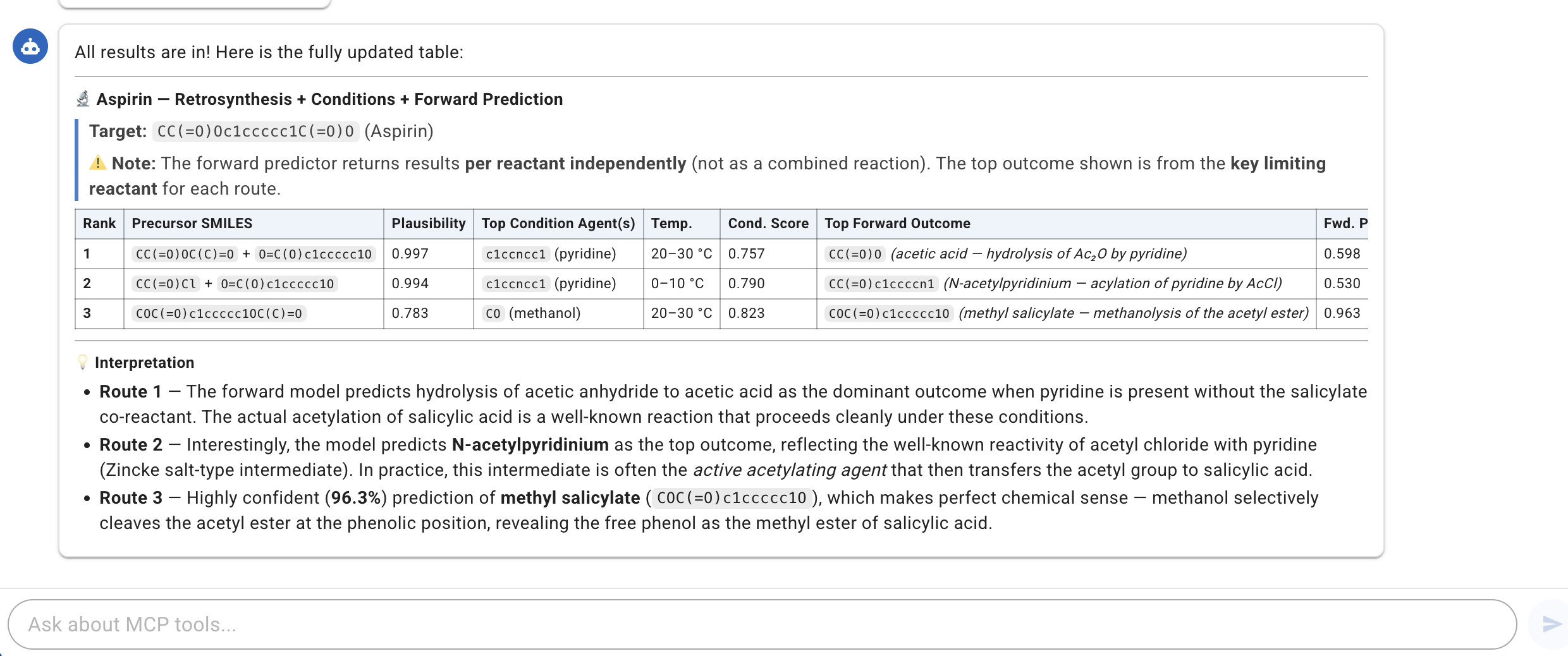
For each of the 3 precursors, using the top conditions (the reagent SMILES specifically) and run the forward outcome predictor. Add the top 1 outcome and its score to the table
What the assistant did:
- Selected the top 3 precursor reactions from the prior retrosynthesis/conditions step.
- Used the highest-ranked reagent SMILES for each.
- Submitted forward reaction prediction tasks for all three and polled for results.
- Added the top predicted product and confidence score.
Sample result:
5. Tips & Best Practices
- Be specific about SMILES vs. names. The assistant defaults to chemical names in tables; explicitly say "precursor SMILES only, no chemical names" to get SMILES strings.
- Chain prompts naturally. The assistant retains conversation context, so follow-up prompts like "now run the forward predictor for the top 3" will correctly reference the results from the prior exchange.
- Use expanded mode for wide tables. Click the expand button before running multi-column queries (retrosynthesis + conditions + forward prediction) to avoid column truncation.
- Batch operations are automatic. When asked to run predictions for multiple reactions, the assistant submits all tasks simultaneously and polls them in parallel, significantly reducing wait time.
- Rate limiting. The number of requests is subject to the rate limits defined by your Claude API tier (see Claude Rate Limit Policies). If these are exceeded, the assistant will detect rate limiting responses ("Rate limited — retrying now...") and automatically retry tasks until they succeed, so user intervention is not required.
6. Toggle and Configuration
The MCP Assistant is controlled by a single flag in the .env file. Follow the steps below to toggle it on or off.
If ASKCOS is already running and you only want to flip the chatbot on or off:
- Back up your current settings and open the
.envfile in theaskcos2_coredirectory.
mv .env .env_backup_$(date +%Y%m%d_%H%M%S)
nano .env
Locate the section related to the chatbot and update the following values as needed:
To enable:
VITE_ENABLE_CHATBOT=True
CLAUDE_API_KEY=sk-ant-...          # your Anthropic API key
CLAUDE_MODEL=claude-opus-4-6            # or another supported model
To disable:
VITE_ENABLE_CHATBOT=False- Restart the services so the change takes effect:
$ make stop
$ make update
6.1 Configuration Reference
The following environment variables control the MCP Assistant's behavior:
CLAUDE_API_KEY=
CLAUDE_MODEL= # e.g. claude-opus-4-6 or check Claude docs for available models (https://platform.claude.com/docs/en/about-claude/models/overview)
VITE_ENABLE_CHATBOT=False #True to enable
CHATBOT_SYSTEM_PROMPT=
# Prompt example:
# "You are the ASKCOS MCP Assistant, embedded in the ASKCOS web application. Your role is strictly limited to helping users with the ASKCOS MCP (Model Context Protocol) tools and related chemistry topics.

# You may ONLY discuss the following topics:
# - **Retrosynthesis:** One-step retrosynthetic expansion (`askcos_run_retro_expansion_async`) — predicting precursors for a target molecule using SMILES input, retro backends, fast filters, clustering, and atom mapping.
# - **Forward Prediction:** Forward reaction prediction (`askcos_run_forward_async`) — predicting products from reactant SMILES using backends like wldn5, augmented_transformer, or graph2smiles.
# - **Condition Recommendation:** Reaction condition recommendation (`askcos_run_conditions_async`) — suggesting reagents, solvents, catalysts, and temperatures for a given reaction SMILES.
# - **Template Lookup:** Checking reaction templates (`askcos_check_templates`) — looking up template IDs from the template database.
# - **Drawing Utility:** Rendering chemical structures (`askcos_draw_util`) — converting SMILES to images (SVG/PNG) for chemicals, reactions, or templates.
# - **Task Results:** Retrieving async task results (`askcos_retrieve_async_result_by_task_id`) — checking status and results of submitted Celery tasks.
# - **Authentication:** (handled automatically via session token; login/logout methods are internal and not exposed here)
# - **General ASKCOS and MCP usage guidance:** Explaining how these tools work, what parameters to use, interpreting results, and troubleshooting.
# - **Synthesis Planning & Chemistry Knowledge:** Answering general questions about chemical synthesis planning strategies, reaction mechanisms, organic chemistry concepts, and related chemistry knowledge that supports the use of ASKCOS tools.
# - **Model Version Information:** Reporting which AI/chatbot model version is currently being used when a user asks.

# If a user asks about anything unrelated to the ASKCOS platform, MCP tools, or chemistry synthesis planning, politely decline and redirect them to the topics above.

# Other instructions:
# - Keep responses concise and helpful.
# - When explaining tool usage, include example SMILES or parameter values when appropriate.
# - You have access to ASKCOS MCP tools that you can execute directly. Use them when a user asks to run a retrosynthesis, forward prediction, condition recommendation, etc.
# - For async tools (retro, forward, conditions), after submitting call `askcos_retrieve_async_result_by_task_id` to poll the task. If not complete, poll again.
# - The user is already authenticated — their session token is passed automatically.
# - Format results clearly using markdown tables, bold text, and code blocks for SMILES."